
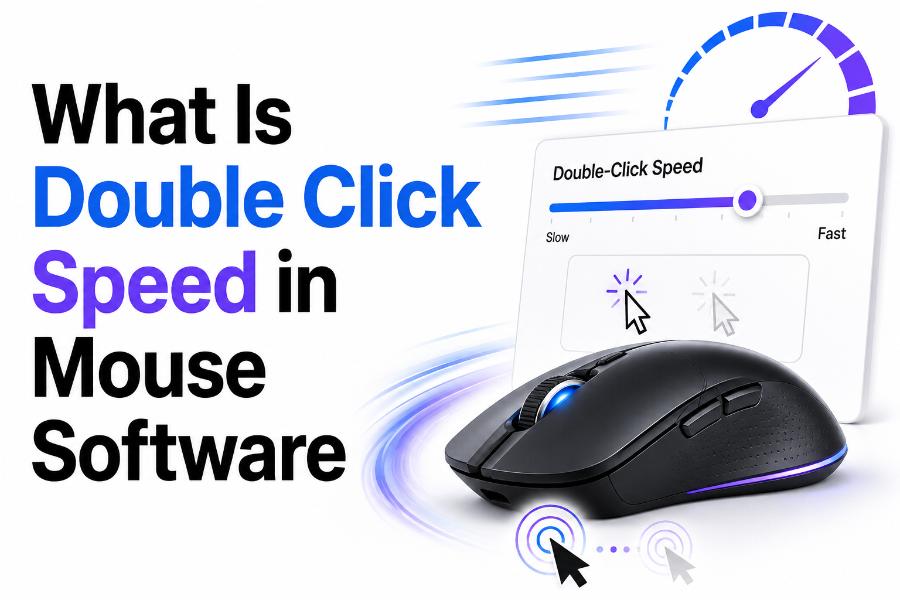
| Quick Answer: Double click speed is the maximum time allowed between two presses of the primary mouse button for the computer to recognize them as one double-click action. A faster setting requires the two clicks to happen closer together; a slower setting gives the user more time. |
Double-clicking is a basic computer action used to open files, launch applications, select words, and activate interface elements. Yet the phrase “double click speed” is often misunderstood. It does not usually change how quickly the mouse moves across the screen, and it does not make the physical switch click faster. It changes how the operating system interprets the timing between two clicks.
Knowing what is double click speed in mouse software helps when files open unexpectedly, double-clicks are not recognized, or a single physical click sometimes behaves like two. The setting can improve accessibility and comfort, but it cannot repair every hardware problem.
This guide explains how double-click timing works, where the setting appears, how to test it, how it differs from clicking speed measurements, and what to do when the mouse produces inconsistent results.
Double Click Speed Definition
Double click speed is a timing threshold. When you press and release the primary mouse button twice, the computer measures the interval between the clicks. If the interval is shorter than the configured threshold and the pointer remains within an acceptable area, the system treats the sequence as a double-click. If the interval is too long, it treats the input as two separate single clicks.
A “fast” setting means the allowed interval is short. You must click twice rapidly. A “slow” setting means the system waits longer for the second click. This can help users with limited dexterity, unfamiliarity with a mouse, fatigue, or certain ergonomic needs.
Mouse software may display the setting as a slider labeled Slow to Fast. The exact timing values and behavior depend on the operating system, desktop environment, application, and driver. Some gaming mouse programs focus on debounce or button response settings instead of the operating system’s double-click threshold.
What Happens During a Double-Click?
A double-click consists of two complete click cycles: press, release, press, release. The operating system or application receives the button events and evaluates their timing and pointer position. The second click must occur soon enough and usually close enough to the first location.
Applications decide what a recognized double-click does. In a file manager, it may open a folder or file. In a text editor, it may select a word. In some creative software, it may open detailed settings. On the web, many controls are designed for a single click, and double-clicking may select text or trigger an unintended action.
Because the interpretation happens in software, the same physical rhythm may feel different across systems. Remote desktop latency, browser performance, accessibility settings, touchpad drivers, and application-specific behavior can influence the experience.
How the Double Click Speed Slider Works
The slider changes the permitted delay between the first and second click. Moving it toward Fast reduces the delay. Moving it toward Slow increases the delay. Most settings panels provide a test icon or folder. You double-click the icon to see whether the current setting recognizes your natural rhythm.
The ideal setting is not the fastest possible value. It is the value that reliably recognizes an intentional double-click while avoiding accidental double-clicks. A setting that requires effort may reduce productivity and increase hand tension. A setting that is too slow may interpret two intentional single clicks as one double-click in some contexts.
Adjust the slider in small steps. Test several times using a relaxed grip and your normal posture. Do not force an unusually fast rhythm just to pass the test, because the setting should fit everyday use.
How to Change Double Click Speed in Windows
In Windows, open Settings or the classic Mouse Properties panel. Depending on the version, you may find the control under Bluetooth and devices, Mouse, and Additional mouse settings. In Mouse Properties, open the Buttons tab and locate the Double-click speed slider.
Move the slider slightly toward Slow if your double-clicks are often ignored. Move it toward Fast if separate clicks are frequently interpreted as a double-click. Use the test folder icon, apply the setting, and try opening several normal files and folders.
Windows labels and navigation can change between releases, so use the Settings search box for “double-click speed” or “mouse properties” when the path differs. Manufacturer software usually does not replace the operating-system threshold unless it specifically offers a matching control.
Double Click Settings on macOS and Other Systems
macOS provides a double-click speed setting in System Settings, commonly under Accessibility and Pointer Control or related mouse and trackpad options. Moving the control changes how quickly two clicks must occur. The setting can apply to mouse and trackpad double-click recognition.
Linux desktop environments such as GNOME, KDE Plasma, Cinnamon, and others may place the option in Mouse and Touchpad settings or system accessibility settings. Names and paths differ by distribution and desktop version.
Some applications implement their own timing logic. If double-clicking fails only in one program, check that application’s preferences, extensions, remote-session behavior, or known input conflicts before changing the global system setting.
Double Click Speed vs. Clicks Per Second
Double-click speed and clicks per second measure different things. Double-click speed is a recognition threshold for a pair of clicks. Clicks per second, often shortened to CPS, measures how many clicks a user produces during a fixed time.
A person can have a high CPS score but still use a slow double-click setting. The CPS test measures repeated clicking performance, while the system setting decides whether two nearby clicks form a single command. Online tools such as ClickCounterTool.com can help measure total clicks or clicking pace, but they do not automatically reveal the operating system’s exact double-click threshold.
Do not increase hand strain to chase a high number. For normal computer use, consistency, accuracy, and comfort matter more than maximum clicking speed.
Double Click Speed vs. Mouse Pointer Speed
Pointer speed controls how far the cursor moves in response to physical mouse movement. Sensitivity, DPI, acceleration, and pointer speed affect navigation. They do not directly change the time allowed between clicks.
Users sometimes confuse the two because both settings appear in mouse control panels. If the cursor moves too far or too slowly, adjust pointer speed or DPI. If two presses are not recognized as a double-click, adjust double-click speed. Diagnose the symptom before changing settings.
Double Click Speed vs. Debounce Time
Debounce time is a separate concept related to the electrical behavior of switches. A physical mouse switch may produce tiny repeated signals when its contacts close or open. Firmware or software ignores very rapid extra signals for a short period so one physical press is registered as one click.
Lower debounce settings can reduce input delay but may allow switch chatter to appear as unintended double-clicks, especially on worn mechanical switches. Higher debounce settings can suppress chatter but may affect certain rapid clicking techniques. Not every mouse exposes this setting.
Changing the operating system’s double-click speed may make intentional double-clicking easier, but it often will not solve switch chatter that turns one physical press into two signals. Hardware testing, firmware updates, debounce controls, or switch repair may be needed.
How to Test Your Double Click Speed
Start with the test area provided in the operating system’s mouse settings. Double-click the icon ten times at your normal pace. If several attempts fail, move the slider one small step toward Slow and repeat. If files open when you intend two separate selections, move it slightly toward Fast.
You can also test in a file manager with harmless folders. Avoid testing on executable files or actions that may cause changes. Use consistent hand position and do not tense your fingers. Test with another USB port or another computer if the behavior is inconsistent.
Online double-click tests can show whether a browser detects pairs of clicks, but browser timing and page scripts may not match the system exactly. Treat them as supplementary checks, not definitive hardware diagnostics.
Signs the Setting Is Too Fast
The most obvious sign is that intentional double-clicks are frequently treated as two single clicks. You may select and then rename a file instead of opening it, fail to open folders, or need several attempts. This is common when the slider is set beyond your comfortable rhythm.
A setting can also feel too fast when fatigue, injury, age, mouse shape, button stiffness, or limited mobility makes rapid repetition difficult. Slowing the threshold is a valid accessibility adjustment, not a performance failure.
Before changing the setting, check whether the issue occurs with both the mouse and touchpad. If only one device is affected, the problem may involve that device rather than the global threshold.
Signs the Setting Is Too Slow
A very slow threshold may recognize two nearby single clicks as a double-click. This can open files unexpectedly or activate commands when you intended to make separate selections. The issue is more likely when you click the same object twice within a short period.
Move the slider toward Fast in small increments and test your normal workflow. Do not jump to the maximum setting because that may create the opposite problem. The goal is a comfortable balance.
Why a Mouse May Double-Click by Itself
If one physical click is regularly detected as two, the problem may be hardware switch chatter, worn contacts, dirt, static, a loose connection, or a failing mouse. Software conflicts, macro assignments, firmware, or very low debounce settings can also contribute.
First, connect the mouse to another port and restart the system. Test without a USB hub. Check the manufacturer’s software for button remapping, macros, firmware updates, and debounce options. Try the mouse on another computer and try a known-good mouse on the original computer.
If the issue follows the mouse across computers, hardware is the likely cause. Cleaning or switch replacement may require technical skill and can affect warranty coverage. Replacing the mouse is often the safest solution for low-cost devices.
Why Double-Clicks May Not Register
Missed double-clicks can result from a threshold that is too fast, inconsistent finger rhythm, a stiff or failing switch, wireless interference, low battery power, system lag, or application-specific behavior. A pointer that moves between clicks may also prevent recognition.
Slow the setting slightly and test. Replace or recharge wireless batteries, move the receiver closer, and avoid congested USB locations. Clean the button area according to the manufacturer’s instructions. Disable unnecessary mouse macros and test with default settings.
For remote desktops or cloud applications, network delay can affect input timing. Try the same action locally. If only one program is affected, update or repair that program rather than changing every system setting.
Best Settings for Gaming, Work, and Accessibility
For office work, use a moderate value that recognizes relaxed double-clicks without accidental openings. Gaming usually relies more on single-click response, polling rate, DPI, and in-game controls. The fastest double-click threshold does not automatically improve game performance.
For users with limited dexterity, move the setting toward Slow and consider features such as single-click-to-open, keyboard navigation, larger icons, trackball devices, or alternative switches. Accessibility needs should guide the configuration.
For shared computers, avoid extreme settings. A middle value is more likely to suit different users. Document any specialized configuration on workplace or public systems so it can be restored after maintenance.
Frequently Asked Questions
Does double click speed make a mouse faster? No. It changes the time allowed between two clicks for double-click recognition. It does not change pointer movement or the physical speed of the switch.
Should I set double click speed to the fastest value? Not necessarily. Set it to the fastest value you can use comfortably and consistently, without missed double-clicks or hand strain.
Can double click speed fix accidental double-clicking? It may reduce some interpretation issues, but it usually cannot fix a worn switch that sends two signals from one press.
What is a good double click speed? There is no universal ideal. A good setting recognizes your normal intentional double-click and does not combine separate clicks accidentally.
Is double-click speed the same as debounce time? No. Double-click speed is an operating-system recognition interval. Debounce time filters rapid electrical signals from a physical switch.
Conclusion
Double click speed in mouse software is the allowed timing gap between two clicks that the system interprets as one double-click command. A faster value requires a tighter rhythm, while a slower value gives more time. The correct setting is the one that works reliably with your natural movement.
Adjust the slider gradually, test in the system panel and normal applications, and separate timing problems from pointer speed or hardware switch problems. When one physical click repeatedly becomes two, investigate debounce settings and mouse hardware rather than relying only on the double-click slider.